
Linken Sphere Review: An Antidetect Browser for Multi-Account Management and Proxy Workflows
Managing multiple accounts today takes proper infrastructure: an antidetect browser and proxies. Platforms look at more than the IP address, which Dexodata lets you change. They also analyze many device parameters: Canvas, WebGL, WebRTC, screen resolution, GPU details, locale, time zone, and other elements of the digital fingerprint.
That's why multi-account workflows usually rely on two tools working together. Proxies handle the network connection and IP address, while the antidetect browser creates separate browser environments with independent fingerprints and data.
In this review, we take a look at Linken Sphere, an antidetect browser in development since 2017. It offers a free, unlimited-time trial for 5 profiles, and you can get a 20% discount on your first purchase using the promo code DEXODATA. We'll cover how it handles profiles, what it offers teams and automation, how much it costs, and how to quickly connect Dexodata proxies.
What Is Linken Sphere
Linken Sphere is an antidetect browser for running multiple independent browser sessions on a single computer.
The easiest way to think of each session is as a separate browser inside one interface. It has its own cookies, history, settings, proxy, and digital fingerprint. Data from one profile never mixes with another, even when dozens of sessions are managed from the same app.
This approach is used in social media marketing, affiliate marketing, e-commerce, ad account management, marketplaces, crypto services, web automation, and other tasks where accounts and work environments need to stay separate.
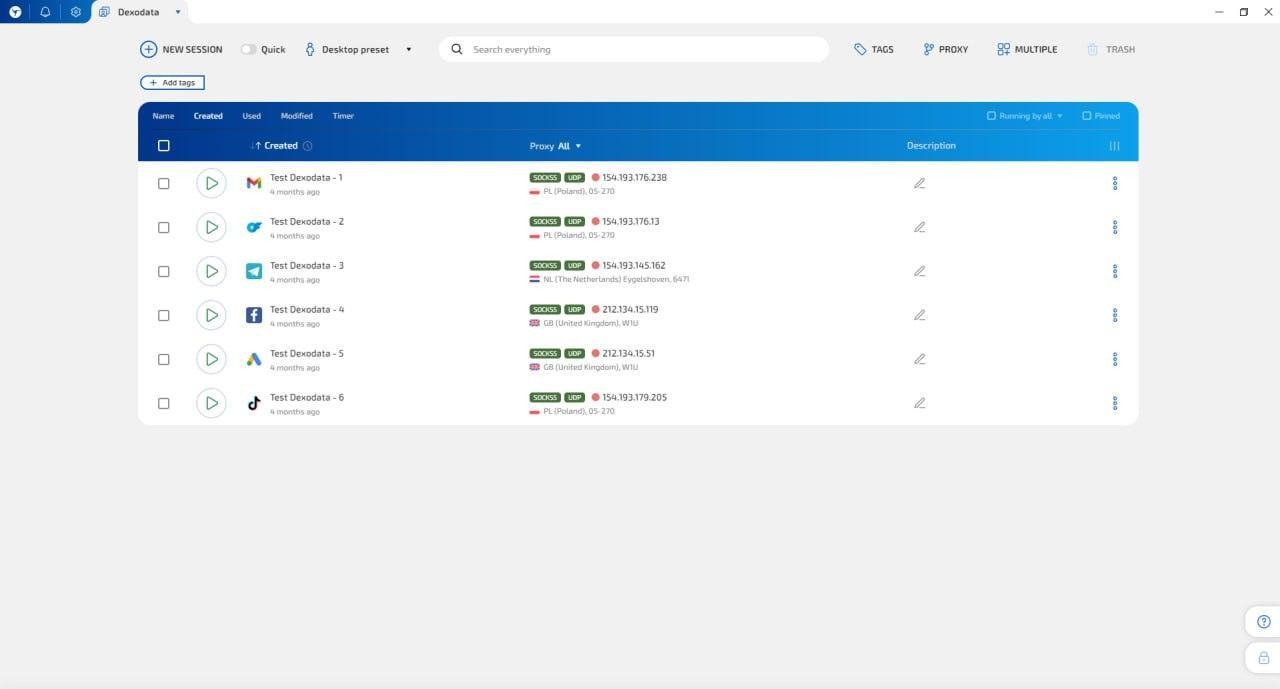
Worth noting: Linken Sphere is more than a fingerprint spoofing tool. A large part of the product is about managing a large number of profiles: workspaces, tags, statuses, proxies, presets, team access, and automation.
Key Features
Before getting into individual settings, the browser's main capabilities fall into a few areas.
Isolated sessions. Each account gets its own browser environment with separate data and configuration.
Automatic and manual fingerprint setup. You can let the browser generate the parameters or fine-tune the configuration yourself.
Mobile configurations. Linken Sphere can emulate Android and iOS browser environments, as well as configurations of different desktop browsers.
Hybrid 2.0. A dedicated mode that selects profile parameters based on the real hardware of the user's computer. This helps avoid some unnatural combinations of device characteristics.
Proxy Manager. The built-in manager lets you store proxies separately from profiles, import them in bulk, check their speed and geolocation, and assign them to sessions.
Organization for large account sets. Workspaces, tags, statuses, descriptions, and other tools keep a list of several hundred profiles from turning into chaos.
Teamwork and API. Higher-tier plans let you add team members, manage access, and connect external automation.
You can try the browser for free: the base plan includes five sessions and has no time limit.
Installation and First Launch
Linken Sphere is available for Windows and macOS. There are currently no separate versions for Linux, Android, or iOS.
After installing, create an account and sign in. The interface is built around workspaces and a session list.
You don't need to understand every fingerprint parameter to get started. For your first profile, you can use automatic settings, connect a proxy, and start working almost right away.
Once you have more profiles, it helps to set up a simple organization system early on. For example, split workspaces by project, tag sessions by geo or platform, and use statuses to mark each account's current state.
This barely matters with five profiles, but it becomes important once you have dozens or hundreds.
How to Create a Session
Creating a new profile starts with the New session button.
First, you can set a name, description, and tags. These are used only for internal organization and don't affect the browser fingerprint itself.
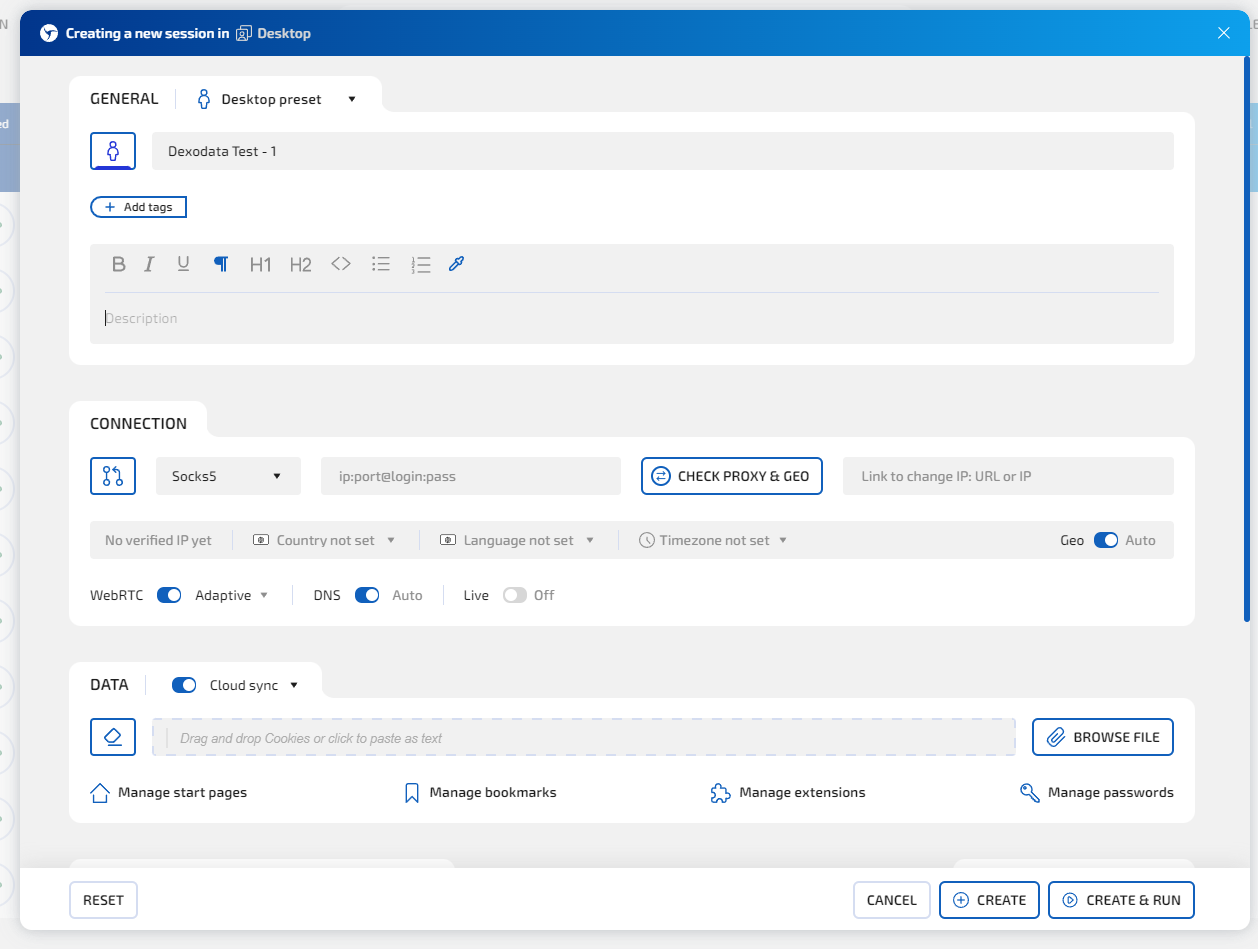
Next, choose a configuration. If you don't need manual control over every parameter, it's easiest to use auto-generated values or Hybrid 2.0. More experienced users can configure the OS, browser, and related characteristics themselves.
This is also where you connect a proxy.
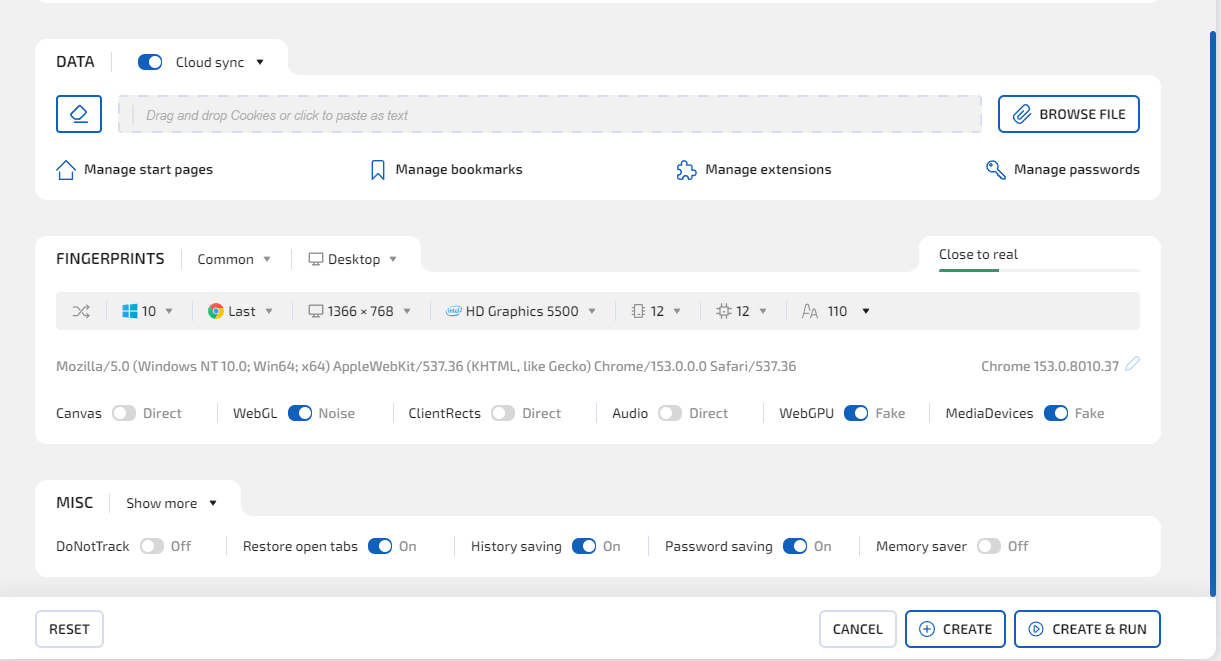
Once the connection is set up, you can check the IP and geo right inside Linken Sphere. If needed, you can also import cookies and other data into the profile.
After saving, the session appears in the workspace and launches as a separate browser window.
How to Connect Dexodata Proxies to Linken Sphere
Proxies are one of the key parts of an antidetect profile setup. If several independent sessions keep going online from the same IP, fingerprint spoofing alone won't be enough in many scenarios.
Dexodata offers three main proxy types:
-
residential – IPs of home users and public Wi-Fi networks;
-
mobile – mobile IPs from 4G/5G networks;
-
datacenter – addresses from server and data center infrastructure.
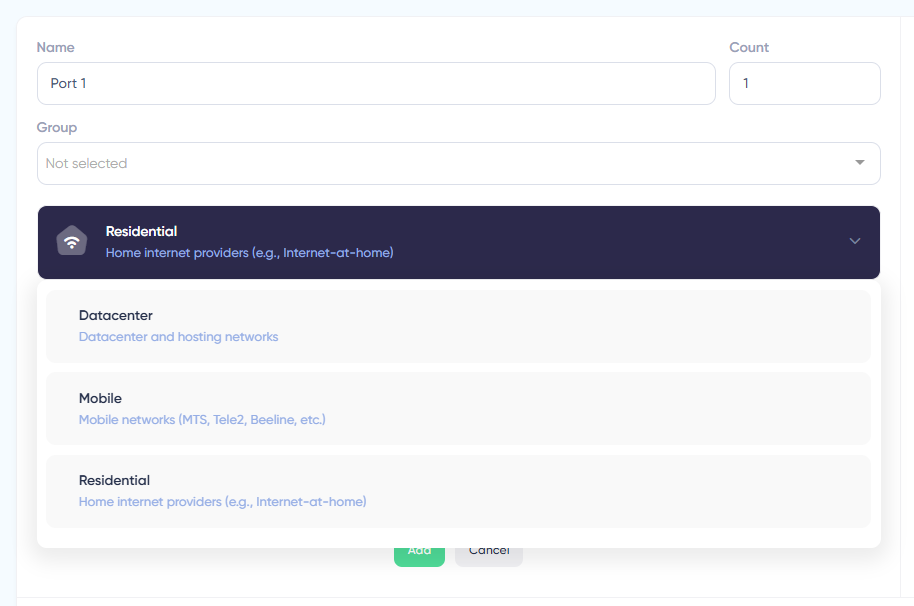
The right choice depends on the task.
Residential proxies suit scenarios where the connection should look like that of a regular home user. Dexodata lets you select them by country, city, and ISP, and supports IP rotation.
Mobile proxies use carrier IPs. They also come with geo targeting, and the external IP can be rotated via API, on a timer, or on each new connection.
Datacenter proxies are usually a good fit when traffic costs matter more than looking like a home connection.
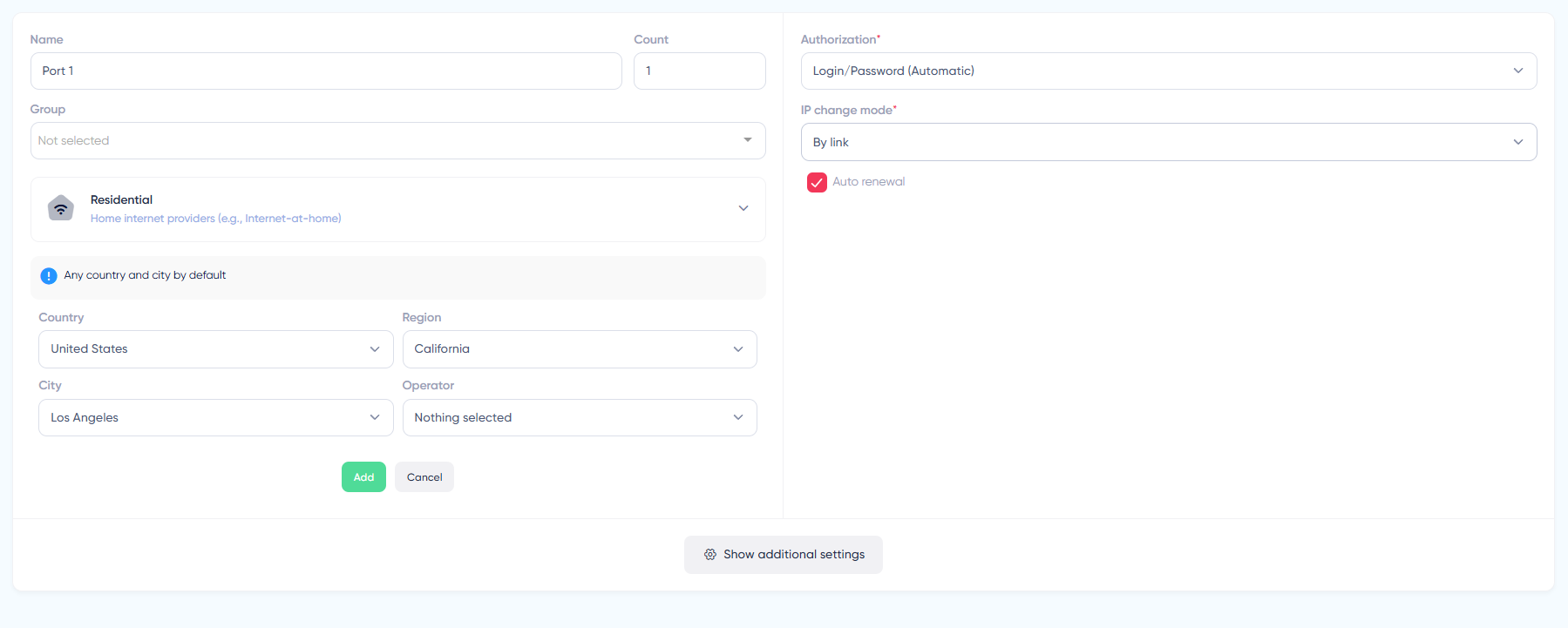
Connecting them to Linken Sphere is simple:
-
Create or select a proxy in your Dexodata dashboard.
-
Copy the connection details.
-
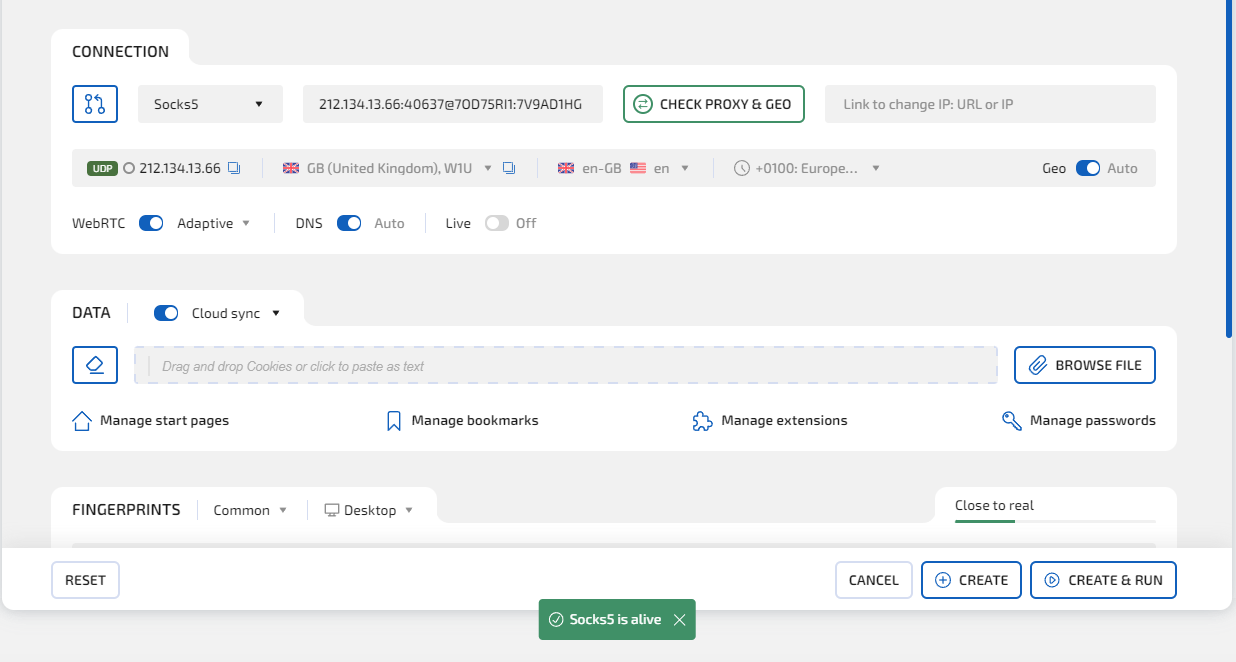
Open the session in Linken Sphere and go to the connection settings.
-
Select the matching connection type and paste the proxy details.
-
Run the Proxy & GEO check.
-
If the connection works correctly, save the profile.
Proxy Manager: When You Have a Lot of Proxies
Adding one IP manually is easy. Doing it a hundred times in a row is a different story.
For larger volumes, the built-in Proxy Manager is more convenient.
It lets you upload proxies as a list or import TXT/CSV files, check speed and geolocation, edit entries, and then assign them to profiles in bulk.
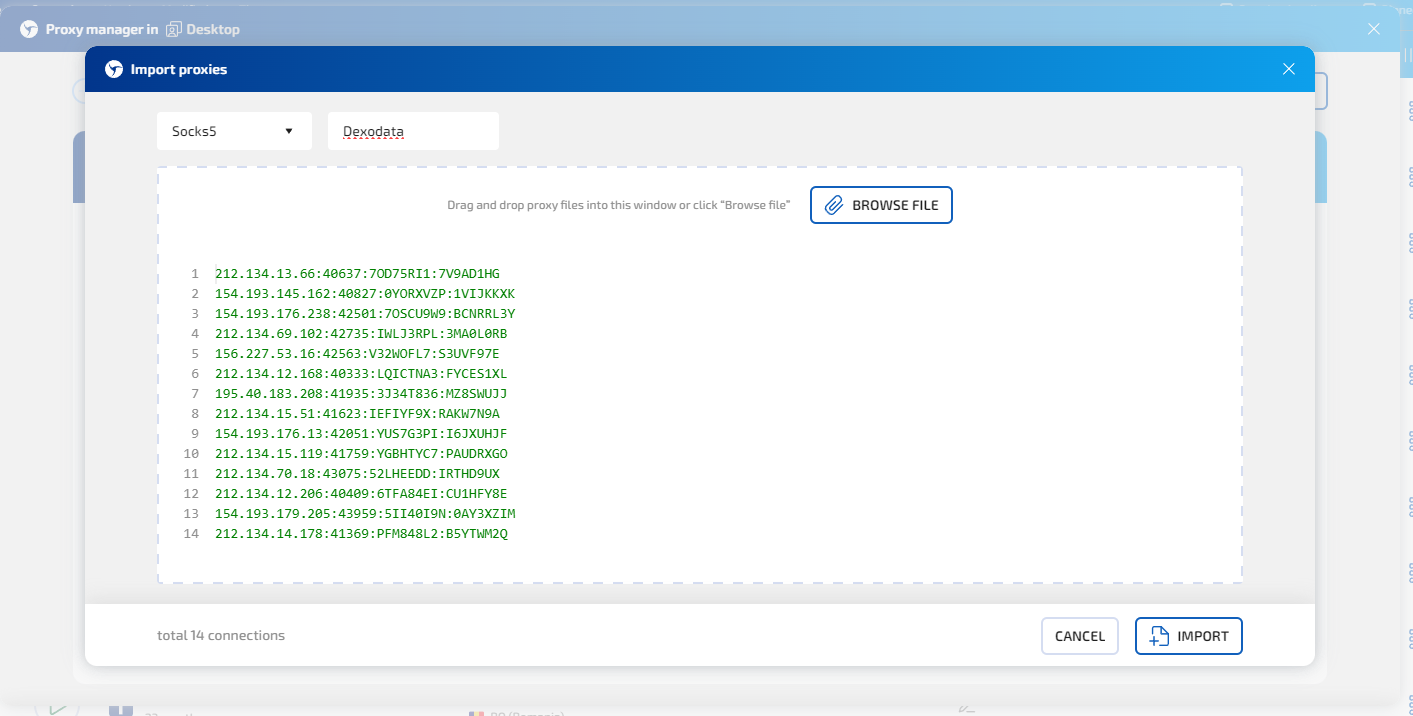
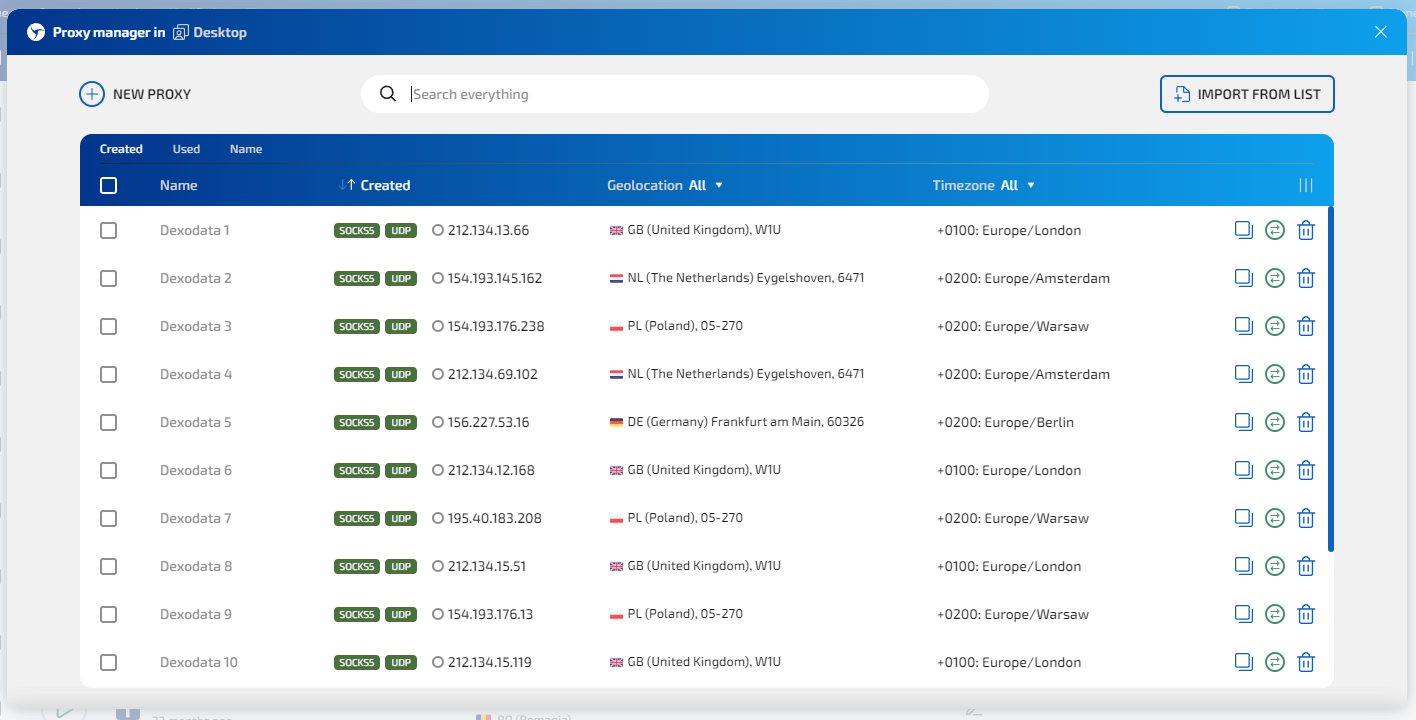
This is where separating resources from browser profiles really pays off. You don't have to enter a proxy into each session by hand: you can build your own pool first, name it properly, and then distribute connections across accounts.
For day-to-day work, this saves a noticeable amount of time.
Fingerprint Spoofing
An antidetect browser isn't just about generating a random set of characteristics. The parameters need to be consistent with each other.
For example, GPU information is tied to WebGL and Canvas, language and time zone to geolocation, and the browser version has to match the rest of the environment.
Linken Sphere offers several modes for working with configurations. Beginners don't need to change dozens of values by hand: an automatically generated configuration works fine. Hybrid 2.0 also takes into account the characteristics of the actual device the app runs on and builds a consistent set of parameters based on it.
Teamwork and Automation
With a small number of accounts, most actions can be done manually. But once you're dealing with hundreds of profiles, automation starts to make sense.
The Pro plan adds a Local API and team management. It's designed for small teams and lets you connect external automation tools. Premium removes the cap on team members.
There are also more specialized tools.
For example, in August 2026 Linken Sphere introduced the Run One Time API method for one-time sessions. It creates and immediately launches a temporary profile with a single request. When the work is done, the session is deleted automatically, isn't synced to the cloud, and doesn't take up a permanent profile slot. The feature is available on Premium.
Not every antidetect user needs this, but for scraping, testing, and other automated scenarios it's a useful approach: you don't have to manually maintain hundreds of temporary profiles.
How Much Does Linken Sphere Cost
Linken Sphere has five main plans.
|
Plan |
Sessions |
Base monthly price |
|
Free |
5 |
$0 |
|
Pure |
30 |
$30 |
|
Light |
150 |
$90 |
|
Pro |
500 |
$160 |
|
Premium |
1,000 |
$300 |
Paying for six months gives a 10% discount, and an annual license gives 20%. With annual billing, the effective monthly price is $24 for Pure, $72 for Light, $128 for Pro, and $240 for Premium.
Free is good for testing the browser and getting a feel for how it works, with no time limit.
Pure is aimed more at solo work: it adds cloud sync and lets you use your account on multiple devices.
Light unlocks advanced configuration options and mobile fingerprint emulation.
Pro adds team management, backups, and API access, which makes it a natural fit for small teams and projects that rely on automation.
Premium is built for large volumes: 1,000 sessions, unlimited team members, and advanced automation features.
What the Linken Sphere + Dexodata Combo Gives You
An antidetect browser and proxies solve different parts of the same task.
Linken Sphere creates a separate browser environment: it stores cookies and account data, manages the fingerprint, isolates profiles, and helps you organize your work.
Dexodata takes care of the network side: the external IP, the right geo, and, for dynamic products, IP rotation. The service offers residential, mobile, and datacenter networks, and proxy and traffic management can also be automated via API.
As a result, you can match each session with the right connection and keep both browser data and network parameters separate across projects.
Setup doesn't require any complex integration either: for regular work, all you need is to get a proxy from Dexodata, add it to Linken Sphere, and save it in the Proxy Manager or directly in the session.
Things to Keep in Mind
Linken Sphere has a fairly large toolset. If you open every setting and try to work through each fingerprint parameter manually, the interface may seem more complicated than it really is.
In practice, almost everything a typical user needs takes a couple of clicks. The interface itself is as simple and intuitive as it gets, and there's also a step-by-step guide, video tutorials, and 24/7 support.
As for limitations, there's no version for Linux or mobile operating systems. The app currently runs only on Windows and macOS.
On the plus side, the free plan has no time limit, so you can fully test the browser on real tasks before buying a subscription.
Conclusion
Over the years, Linken Sphere has grown from a specialized antidetect into a full-fledged environment for multi-account management.
It covers the basics, such as independent browser sessions, cookie management, and proxy connections over any protocol type, as well as tools for bigger projects: bulk import, Proxy Manager, mobile configurations, teamwork, API, and one-time sessions for automation.
At the same time, the browser doesn't require manual setup. You can create a profile, connect a Dexodata proxy, and check the connection in a few minutes, then add other features as your account count and tasks grow.
The combination works well precisely because each service handles its own part of the infrastructure: Linken Sphere isolates browser environments and manages digital fingerprints, while Dexodata provides residential, mobile, or datacenter connections with the network parameters you need.
To get started, the free Linken Sphere plan with five sessions and a test Dexodata connection are all you need. After that, it's much easier to figure out which configuration and proxy type fit your specific workflow.


